
AquaLens App Handbook
The complete AquaLens feature reference: every tab, lab, and tool for freshwater and reef tanks, from test scanning to predictive alerts and the web app.
On this page
This is the full feature reference for AquaLens: what every tab does, which labs and tools live where, and how the pieces fit together into one loop that gets smarter the longer you use it. If you are brand new to the hobby, start with the beginner path and come back here when you want to go deep on a specific feature. If you already keep a tank, jump to whatever section you need.
AquaLens works for both freshwater and saltwater. The two share the same core, but they have different hardware, different chemistry, and different mapping tools, so several sections below note which applies to which. There is one guiding principle worth stating up front: the more complete your data, the smarter every analysis. Tank specs, hardware, livestock, logs, and photos all feed the same engine, and the value compounds every week you keep it current.
The Five Tabs
Across the bottom of the app are five tabs:
- Home is your dashboard: today's care tasks, journal shortcuts, predictive alerts, and the Tank Pulse widget summary.
- Library is the species reference: over 1,750 care guides for fish, plants, invertebrates, and corals, each with parameters, temperament, diet, and reference images. The same library is on the web at /species.
- Camera (the AquaLens mark in the centre) is the identifier. Point it at a fish, plant, coral, invert, algae, or a test kit and it reads what it sees.
- Hub is the community: shared tanks, posts, and messaging with other keepers. It is also on the web at /app/community.
- My Tank is where you will spend most of your time: the full record and analysis for each aquarium you keep.
You can run several tanks at once, each with its own data and analysis. That is exactly how you would track a display tank alongside a quarantine or breeding setup.
The Camera: Identification and Test Scanning
The camera does two very different jobs.
Identifying livestock. Photograph a fish, plant, coral, or invertebrate and AquaLens suggests what it is, then links straight to that species' care guide so you can confirm the call before it changes what you buy or how you treat the tank. When a photo is not enough for a confident answer, the app says so rather than guessing, which matters when the difference between two look-alikes is the difference between reef-safe and not. It also identifies algae, which turns the guesswork out of the algae control playbook into a named problem with a known cause.
Reading test kits. Point the camera at a test strip or the vials of a liquid kit and AquaLens reads the colours for you, and it reads digital testers such as Hanna checkers by OCR. You review the numbers, then they auto-log to the journal. No more squinting at a colour card under kitchen light. The water test interpretation guide explains what each reading means once it is logged.
The My Tank Tab
My Tank is organised into views. The primary views are always visible; the rest live behind the ··· button, and saltwater tanks swap the freshwater-only tools for reef ones.
- Journal is your full logbook: tests, water changes, feeding, dosing, observations, and every auto-logged event, in one timeline.
- Care holds your hardware, light schedules, and maintenance tasks.
- Residents is your stock list, wishlist, and compatibility tools.
- Gallery is a chronological photo timeline of the tank.
- Lab is where the analysis tools live: hardware, chemistry, growth, and costs.
- Analytics plots parameter trends and scores stability over time.
- Health handles fish and coral diagnosis, treatment tracking, and quarantine logs.
- Breeding (freshwater) tracks spawns and fry.
- Reef Map (saltwater) is a 3D coral placement planner; Plant Map (freshwater) is the planted-layout equivalent.
Set the water type first
Before you add anything, open Settings and set the water type, volume, depth, temperature targets, and (for saltwater) sump volume. Water type is the single most important setting: it decides which hardware, labs, chemistry parameters, and maps you see. Depth feeds the lighting calculations; room temperature feeds heater sizing, which you can sanity-check against the heater size tool.
The Journal: Why History Is the Point
Everything in AquaLens routes back to the journal, and that is deliberate. A calculator answers today's question; a journal answers "is this normal for my tank?" Every scan, dose, water change, and note lands here automatically, so the record builds while you simply keep the tank. That history is what powers the early warnings, the trend charts, and AquaGuide's context. The better logging guide makes the full case and shows what is worth logging; the short version is that the tank with the longest, cleanest history is the one the app can protect best.
Analytics and Predictive Alerts
Analytics turns your logged tests into trend charts across pH, ammonia, nitrite, nitrate, KH, GH, phosphate, and, for reef tanks, calcium, alkalinity, magnesium, and salinity, over windows from a week to a year. The skill the charts teach is telling drift from noise: a single odd reading is usually the kit, but three weeks of creeping nitrate is a message.
Predictive alerts (a Pro feature) watch those trends and warn you when a parameter is heading toward trouble before it crosses a dangerous line, using nothing but your own tank's history. This is the moment the compounding data pays off: the fix for a drifting parameter is a small water change or a nudge to your dosing, caught early, instead of a loss caught late.
Care, Reminders, and Dosing Schedules
The Care view holds your hardware and your maintenance rhythm. You can build custom repeating schedules with phone reminders, and a confirmed dose or task auto-logs itself to the journal, so a fasting day, a filter clean, or a two-part dose is both remembered and recorded. For anyone dosing ferts or reef supplements, that combination of reminder plus automatic log is what keeps a routine honest. When a schedule needs a number, the dosing calculator works out the amount.
Health: Diagnosis and Treatment
The Health view is for when something looks wrong. Photograph the affected fish or coral and AquaLens flags possible issues and points you to educational next steps, and it tracks treatments and quarantine timelines so a two-week copper course or a salt treatment does not lose its thread. It is a starting point for your own judgement, not a veterinary diagnosis. Pair it with the fish health and quarantine guide for freshwater disease and the marine quarantine guide for the faster-moving saltwater ones. If a fish is in acute distress right now, go straight to the emergency guide.
The Labs
The Lab view is a set of analysis tools that read your hardware and tank specs:
- Filtration and flow modelling estimates your real-world turnover from your actual filter and media, the same math behind the filter flow tool. The filtration guide explains what the numbers mean.
- Lighting models coverage and, for reef tanks, PAR distribution across the tank. See the planted lighting guide for the freshwater side.
- Cost tracking rolls up spending, income (frags you sell), and monthly energy and water cost, mirrored by the running cost tool.
- Growth tracks plant and coral progress over time from your gallery.
Saltwater and Reef
Switch a tank to saltwater and the reef toolset appears. The reef chemistry suite tracks alkalinity, calcium, and magnesium and includes two-part dosing math; the reef dosing tool is the web version, and it leads with the safe correction pace, not just the dose, so you never shock corals. Salinity and specific gravity convert automatically, matching the salinity tool and salt mix calculator. The Reef Light Lab models PAR for coral placement, and the Reef Map plans it in 3D. ICP test imports (Pro) fold a full trace-element panel into your trends. The whole reef side of the site starts at /saltwater; the reef parameters guide explains every number.
AquaGuide: The Assistant That Knows Your Tank
AquaGuide is the built-in chat assistant. You can ask it aquarium questions for free, up to a daily limit, and it answers in general terms. With Pro, it answers with your full tank context, your parameters, livestock, and history, so "why is my nitrate climbing?" gets an answer grounded in your actual readings rather than generic advice. AquaGuide is also on the web, so you can ask from a laptop while you plan.
The Web Companion and Sync
AquaLens is not only a phone app. At /app you get My Tanks in any browser: the same dashboard, the same journal, the same AquaGuide chat, and web logging that syncs straight back to the app. It is one account and the same data everywhere, so you can log a test from your desk and see it on your phone at the tank. The free web tools (every calculator and the 1,750-species library) need no account at all, and the Build My Tank planner will spin up a full setup plan for a tank you are still dreaming about.
Free, Pro, and What Is Worth Paying For
AquaLens is free to start, and core logging needs no account. Pro unlocks the features that depend on heavier compute or your accumulated history: predictive alerts, ICP import, full-context AquaGuide, and the advanced labs. Nothing in these guides is gated behind paying; the app's advice is free, and Pro is there when you want the tank to watch itself. You can see the full breakdown at /pro.
Doing This With AquaLens
None of the tabs above earns its keep in isolation. Analytics can only flag a drift it has weeks of readings to compare against, predictive alerts only fire on a history you have kept, and full-context AquaGuide is only as sharp as the specs, livestock, and logs you have entered. That is the one habit the whole handbook comes down to: keep each tank's record current and complete, and every lab, chart, and answer gets better on its own. Get AquaLens free and start the record the rest of the app feeds on.
Frequently Asked Questions
Is AquaLens free to use?
Yes. AquaLens is free to start, and core logging, species identification, and test scanning need no paid plan. Pro unlocks the features that rely on heavier compute or your accumulated history, such as predictive alerts, ICP import, full-context AquaGuide chat, and the advanced labs. The website's calculators and species library are free with no account at all.
Does AquaLens work for saltwater and reef tanks?
Yes. When you set a tank's water type to saltwater, the reef toolset appears: alkalinity, calcium, and magnesium tracking, two-part dosing math, salinity and specific gravity conversion, PAR modelling for coral placement, a 3D Reef Map, quarantine tools, and ICP import. Freshwater tanks get planted-tank tools instead, such as the Plant Map and fertiliser tracking.
Can I use AquaLens on more than one tank?
Yes. You can manage several tanks at once, and each gets its own hardware, livestock, journal, and analysis. That is how keepers track a display tank alongside a quarantine or breeding setup without mixing the data.
Can I use AquaLens on a computer as well as my phone?
Yes. The web companion at aqualensapp.com/app gives you the same dashboard, journal, and AquaGuide chat in any browser, and anything you log on the web syncs back to the phone app. It is one account and the same data on every device.
How does AquaLens read my test kit?
You photograph a test strip or the vials of a liquid kit and the app reads the colours for you, and it reads digital testers such as Hanna checkers by OCR. You review the numbers before they save, then they auto-log to the tank's journal so the reading joins your trend charts.
What are predictive alerts?
Predictive alerts are a Pro feature that watches your logged parameters and warns you when one is trending toward trouble before it crosses a dangerous line. The warnings come from your own tank's history, so they catch a slow drift, like creeping nitrate or falling alkalinity, while the fix is still small.
Is the health diagnosis a substitute for a vet?
No. The Health tools flag possible issues from a photo and point you to educational next steps and treatment tracking, but they are a starting point for your own judgement, not a veterinary diagnosis. For serious or unusual illness, consult an aquatic vet.
Do I need an account to use the AquaLens website tools?
No. The calculators and the species library on the website are free to use with no account. An account lets you sync a tank between the app and the web dashboard, log from a browser, and use AquaGuide chat with your tank's context.
Put the Whole Toolkit to Work
AquaLens brings identification, test scanning, trend charts, reminders, and early warnings into one loop that gets smarter the longer you log. Free to start on iPhone, iPad, and Android, with a web companion in any browser.
Keep reading
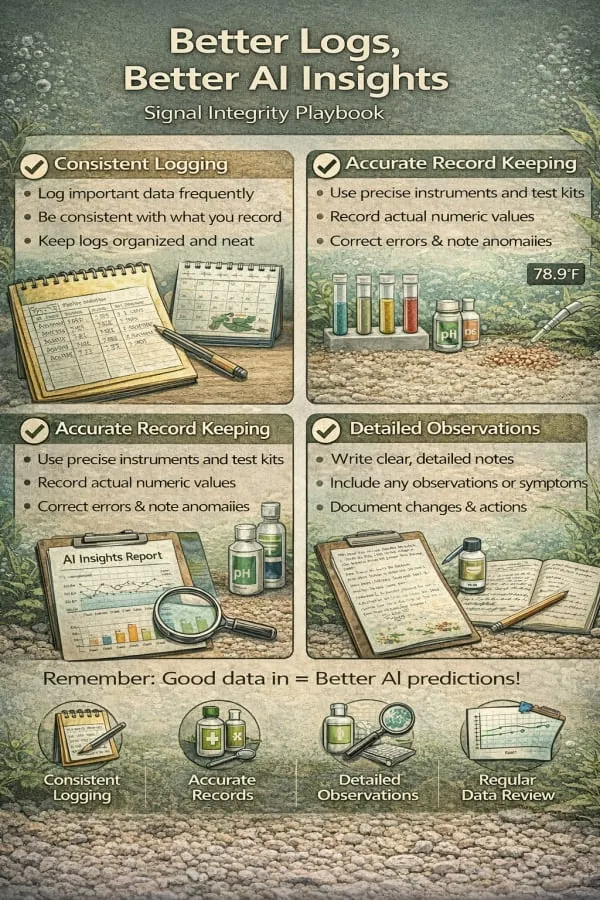
Aquarium logging done right: what to log, how to keep readings consistent, and how clean records make your trend charts and alerts genuinely trustworthy.
A beginner's guide to your first aquarium: what to buy, how to cycle before any fish arrive, which numbers to watch, and the weekly routine.
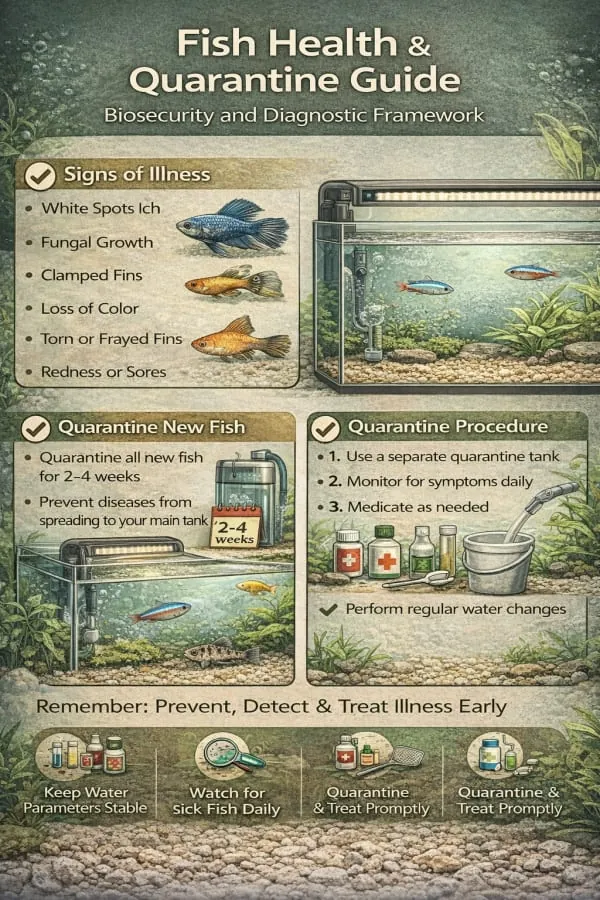
Quarantine new fish, spot the early warning signs, and treat disease without wrecking your tank. A practical freshwater fish health guide.